
Open items side by side
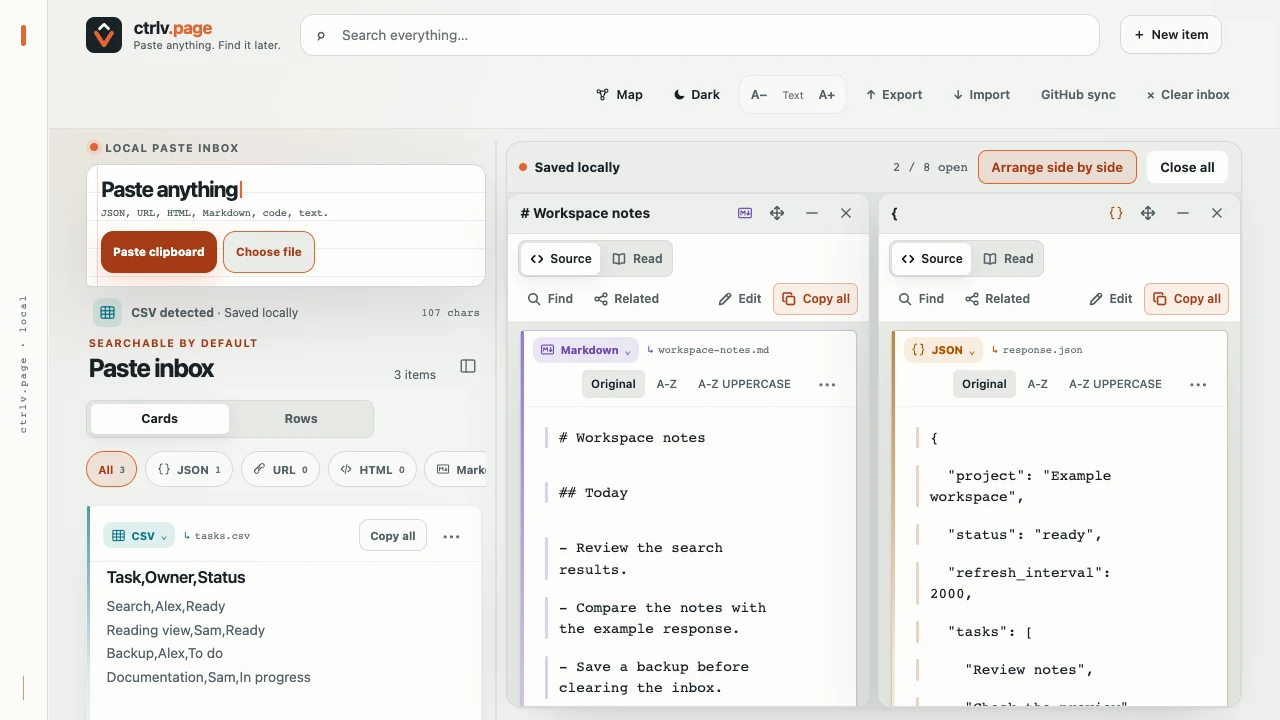
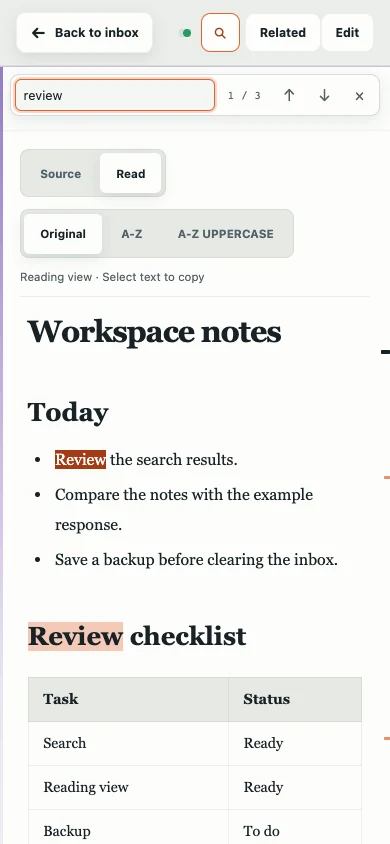
- Open an item from the inbox. On a desktop, it appears in its own card window.
- Open another item. Select an open card to bring it to the front.
- Choose Arrange side by side above the windows to compare them. On a smaller workspace, the button reads Arrange. Select it again to return to the earlier layout.
You can have up to eight cards open, including minimized cards. At the limit, opening another item can close the least recently used card without unsaved changes. If every card has unsaved changes, save or close one first.
On a phone or a narrow window, one item opens full screen. Desktop window positions stay on this device; GitHub sync does not transfer the layout.
Use the card tools
The top bar holds the item title and Move card, Minimize card and Close card controls. Hover over an icon to see its name.
The row underneath groups Source / Read, Find / Related and Edit / Copy all. On a narrow card, the tools wrap onto another row. While you edit, the reading tools are hidden.
Copy all copies the source text, even in Read. For a Note, it copies the title, body, lists and task states as plain text. An unsaved A-Z conversion copies the converted text currently shown. How A-Z changes work.
Move, resize and maximize
- Move: drag the card title bar.
- Resize: drag a card edge or corner.
- Fill the workspace: double-click the title bar. Double-click it again to return to the previous size.
- Use half the workspace: drag the title toward the left or right edge of the card workspace. Release when the half-width preview appears.
With a keyboard, focus Move card, press Enter or Space, then use the arrow keys. Enter keeps the position; Esc cancels the move. Focus Resize card at the bottom-right corner and use the arrow keys to change the size.
Give your cards more room
- With a desktop card open, drag the divider between the inbox and the card workspace to change the list width.
- Choose Rows above the inbox for compact entries, or Cards for previews.
- Select Hide list beside the inbox heading, or press Command+B on Mac / Ctrl+B on Windows or Linux when you are not typing in a field.
- Select Show list on the narrow rail to bring the inbox back.
In Rows, each row has Copy and a three dot item menu with Pin or Unpin and Remove. With a mouse, they appear when you point at a row or move keyboard focus into it. On a touch screen, the three dot menu is always visible. A pinned row shows a small pin.
Double-clicking the divider resets the list width; it does not hide the list. These controls appear when desktop cards are open. List width and display preferences are remembered on this device.
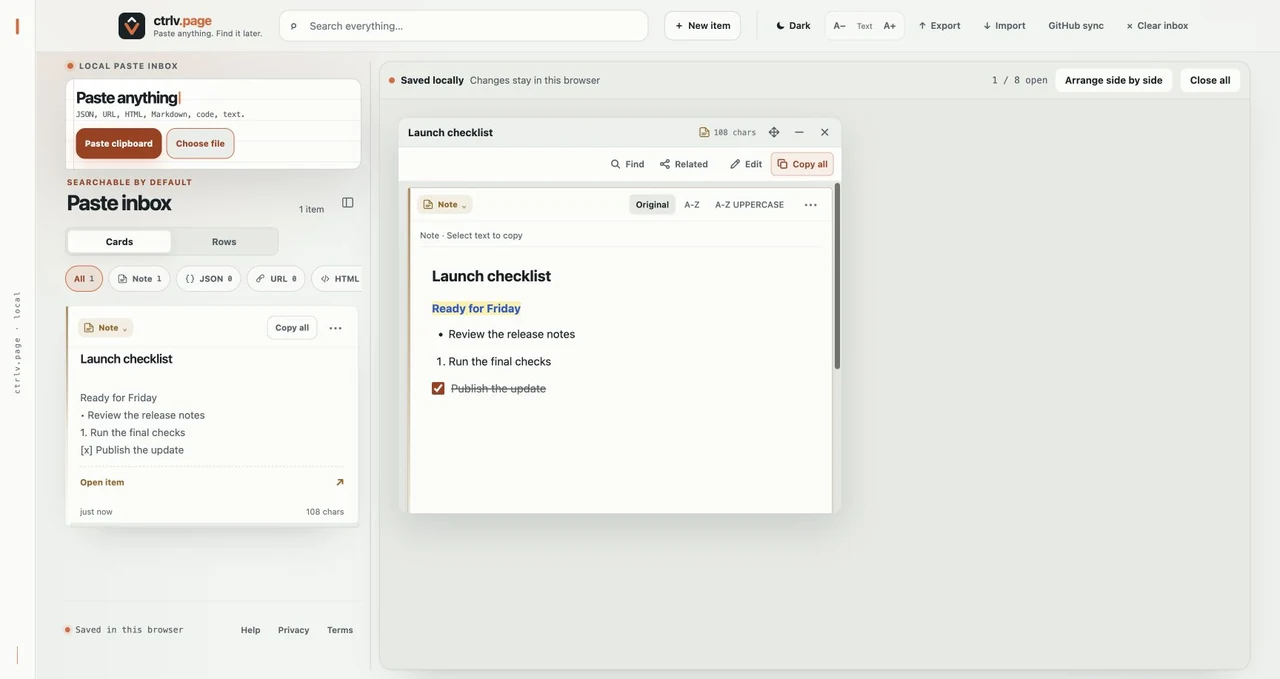
Write a Note with a title and checklist
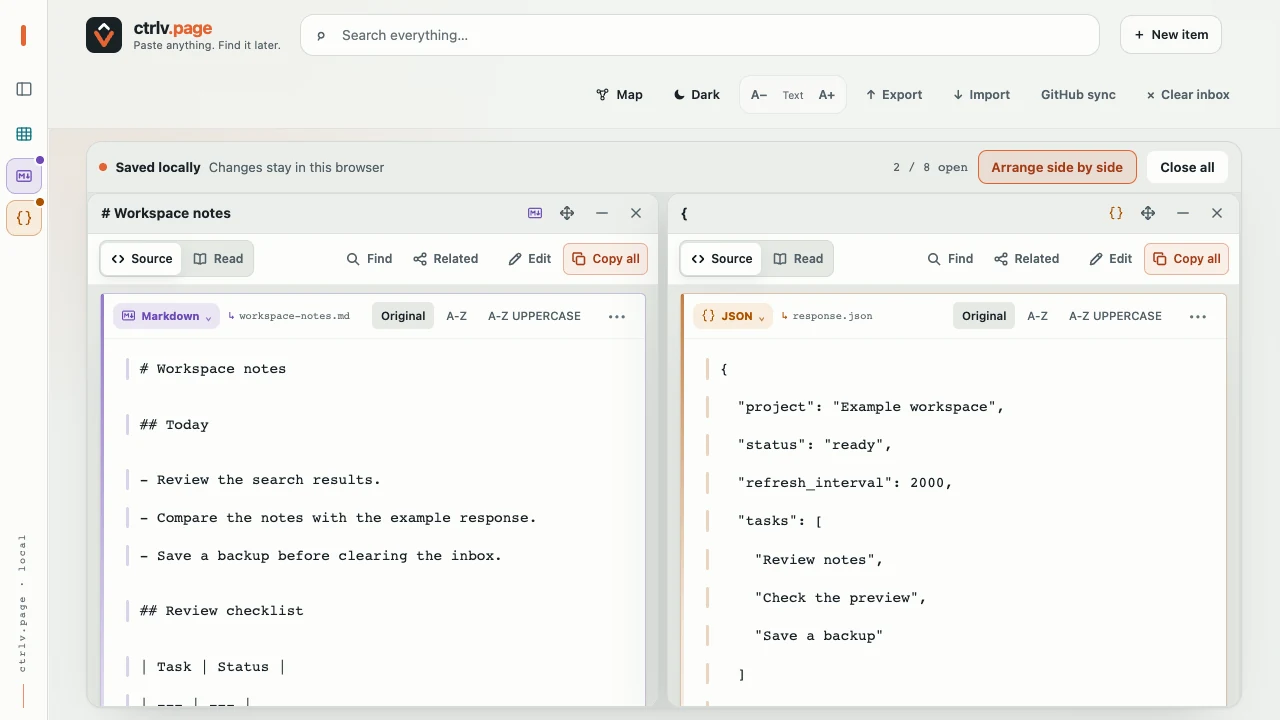
- Select New item on a desktop or phone. Note is selected by default.
- Add an optional Title, then write or paste into the body.
- Select text and use the B, I, U and S buttons for bold, italic, underline and strikethrough, or choose a Text color or a highlight. The Text menu sets headings. The three List buttons make bulleted, numbered and checkbox lists.
- The new note saves locally after a short pause. Select Done to finish, then open its card from the inbox.
A Note keeps its own label on cards and in Map, and its own icon in Rows. Choose the Note filter to separate notes you write from pasted text, JSON and other types. Search finds words in both the title and the body.
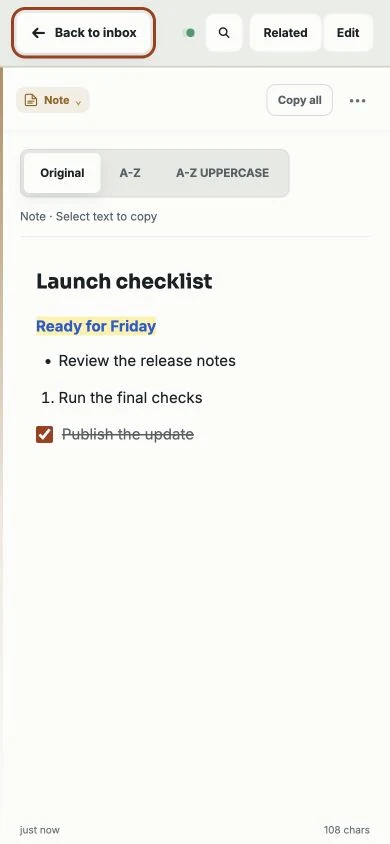
In an open Note, select a checkbox to save its checked state. Choose Edit to change the title, text or formatting, then Save. While typing in the body, Command+B on Mac or Ctrl+B on Windows or Linux toggles bold.
Choose Plain text before writing if you want the original text-entry flow with automatic type detection. Existing Text items stay as they are. To turn one into a Note, open its type menu and choose Note. Converting a Note to another type asks for confirmation: the readable text stays, but its rich formatting is removed.
Read formatted content
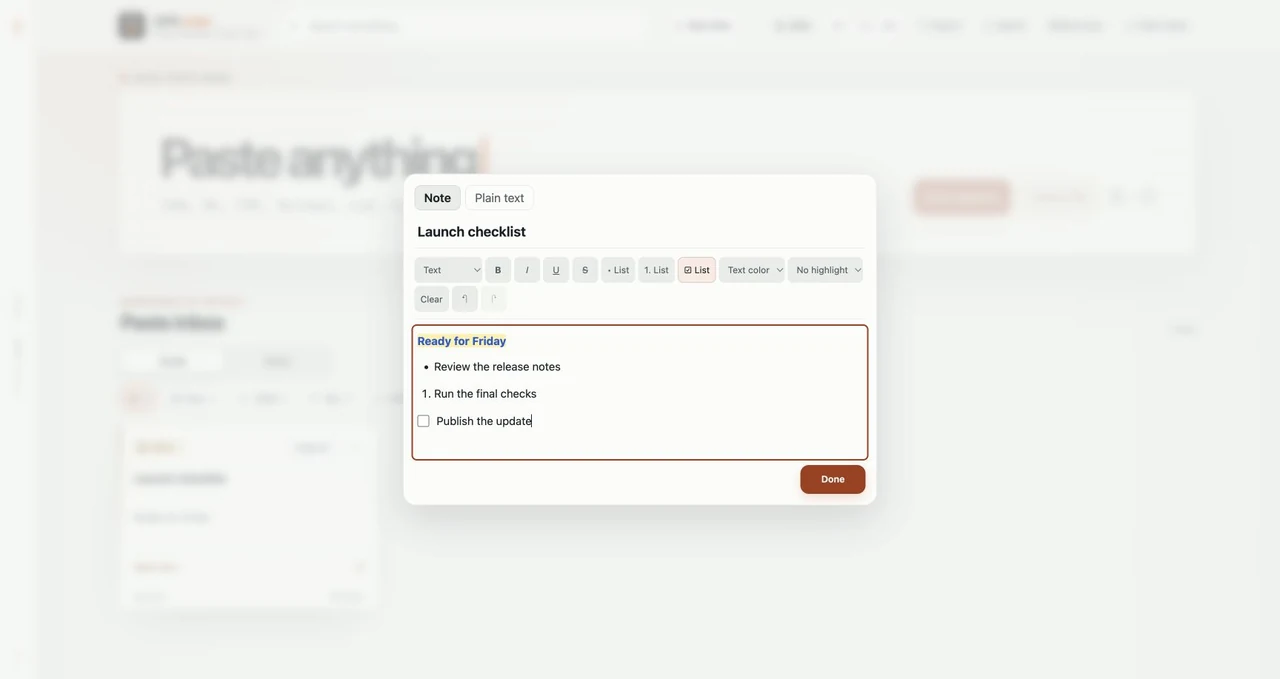
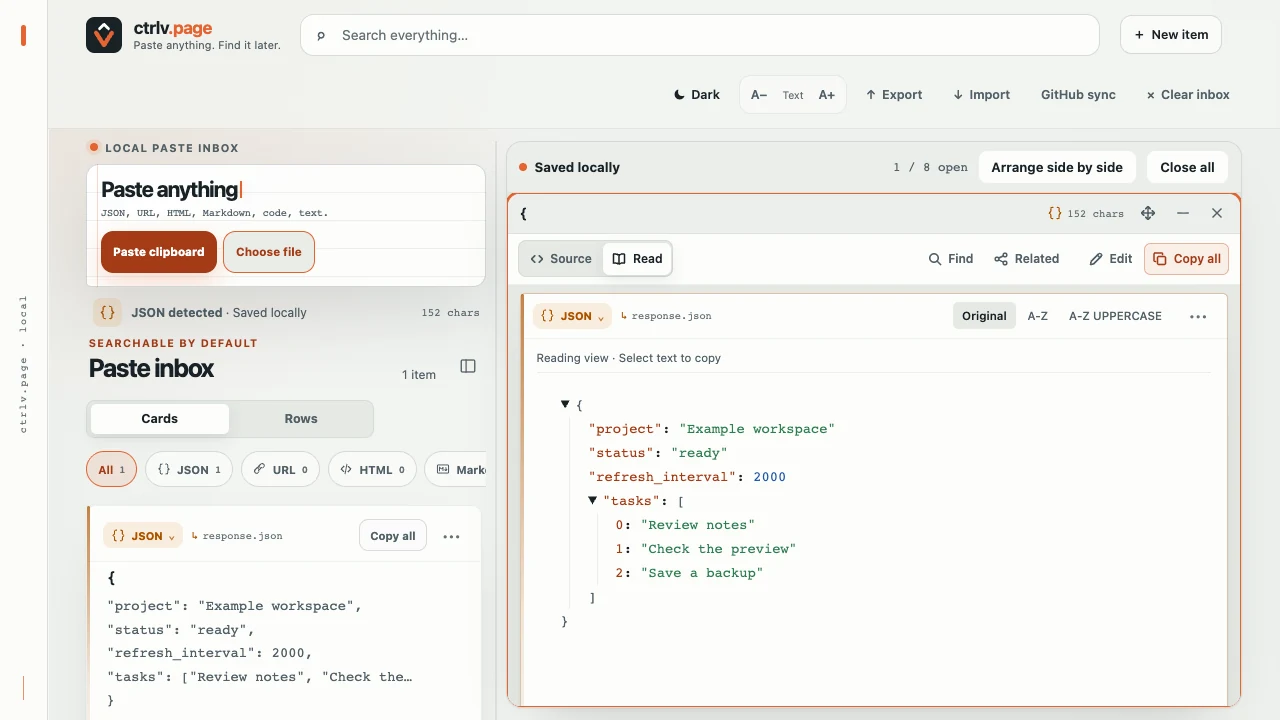
For Markdown, JSON, code, HTML or CSV, open an item and choose Read. Choose Source to return to its text and line-copy controls. A Note opens directly with its saved formatting.
- Markdown: headings, lists, tables and code blocks become a readable document.
- JSON: expand or collapse parts of the tree. Invalid JSON stays in Source.
- Code: syntax colors and line numbers make it easier to scan.
- HTML: preview the page with scripts, forms and remote files blocked. Images or styles that need the internet will not load.
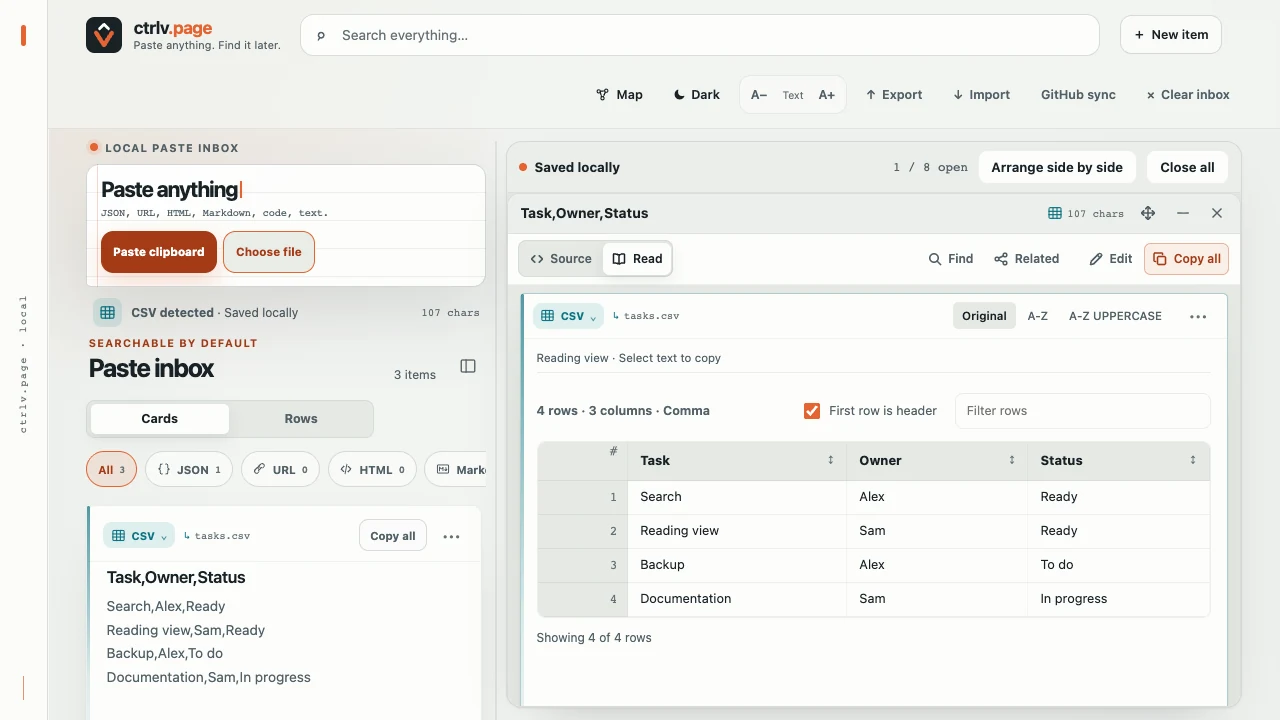
- CSV: read rows and columns as a table.
Large items may stay in Source to keep the app responsive: most reading views stop above 100,000 characters or 2,000 lines. CSV has a separate limit of 10 million characters.
Use Find inside a card to jump to a phrase without filtering the inbox.
Sort and filter a table
- Choose a CSV or TSV file, or paste a table, then open the saved CSV item and select Read.
- Check First row is header. Switch it if the first row contains data instead of column names.
- Select a column heading to sort the rows.
- Type into Filter rows to show rows containing the text you need.
Large tables show 500 rows at a time; use the button below the table to show more. Sorting and filtering change the view only. Copy all keeps the original order and includes the full source.
Edit and return to a draft
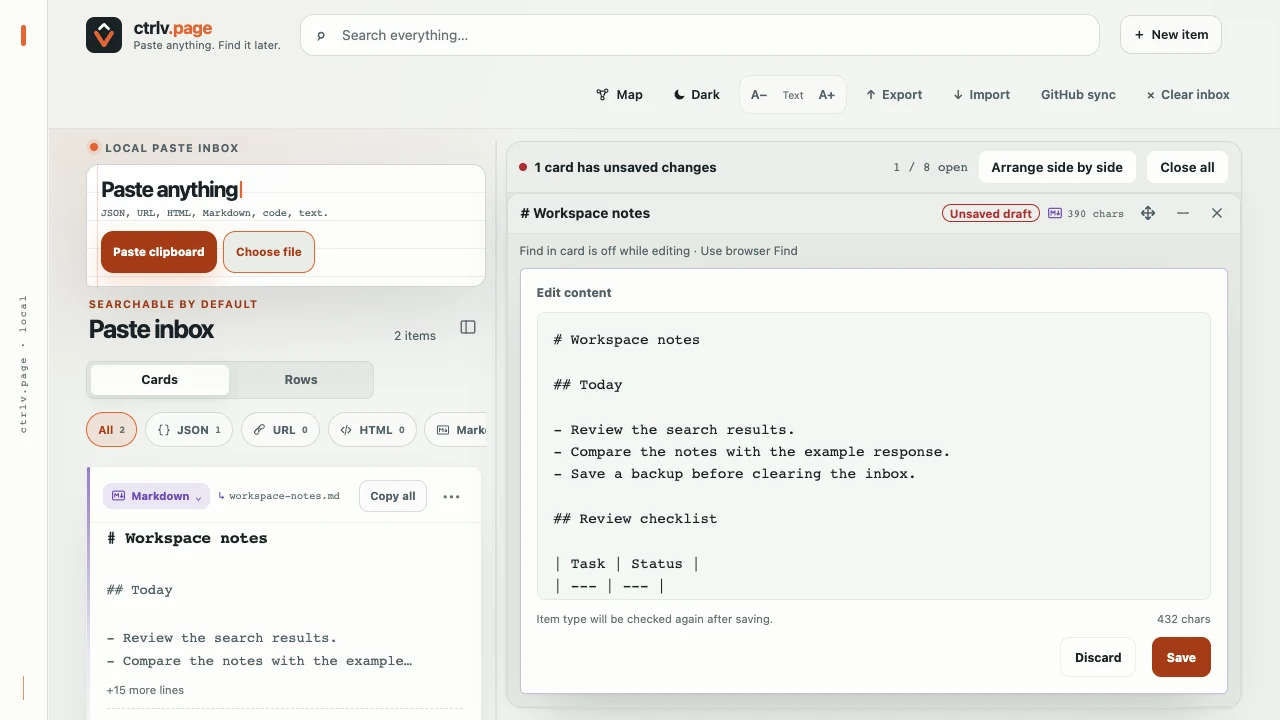
- Open an item and select Edit.
- Change the text. Select Save to replace the saved item, or Cancel to discard the edit.
- If an unfinished edit returns as Unsaved draft, continue typing and save it, or choose Discard to keep the saved item.
ctrlv.page keeps an edit draft on this device after you pause typing for about a second. Drafts are not sent through GitHub sync or included in exports. Do not rely on an immediate reload or shutdown to keep the last keystrokes; use Save before leaving when those changes matter.
Esc is not the same as Cancel. Leaving an edit with Esc can keep a draft for later. Closing a desktop card with unsaved changes asks you to Keep editing, Discard or Save and close.
If the saved item changed elsewhere, the draft shows a notice: Save anyway replaces that newer saved version; Discard keeps it. If the item was removed, Save as new item keeps your draft as a separate item.
Minimize or close a card
Minimize card puts the card in the strip at the bottom. Select its title there to restore it. Close card closes its window; it does not delete the saved item. Open it from the inbox whenever you need it again.
Close all closes the desktop windows and asks about unsaved changes if needed. To delete a saved item, use Remove in the item menu.