
Where your items are stored
ctrlv.page stores saved items inside the browser profile you are using. A file-created item also stores its path-free source file name. Unless you turn on GitHub sync, it does not upload the content of your items. It never uploads the original source file.
There is no ctrlv.page account. Without GitHub sync, another browser, browser profile or device has a separate inbox. Optional GitHub sync keeps the same inbox on your devices through a private GitHub repository you own.
Clearing site data or removing the browser profile can delete the local inbox. Keep an exported file outside the browser if the items matter to you.
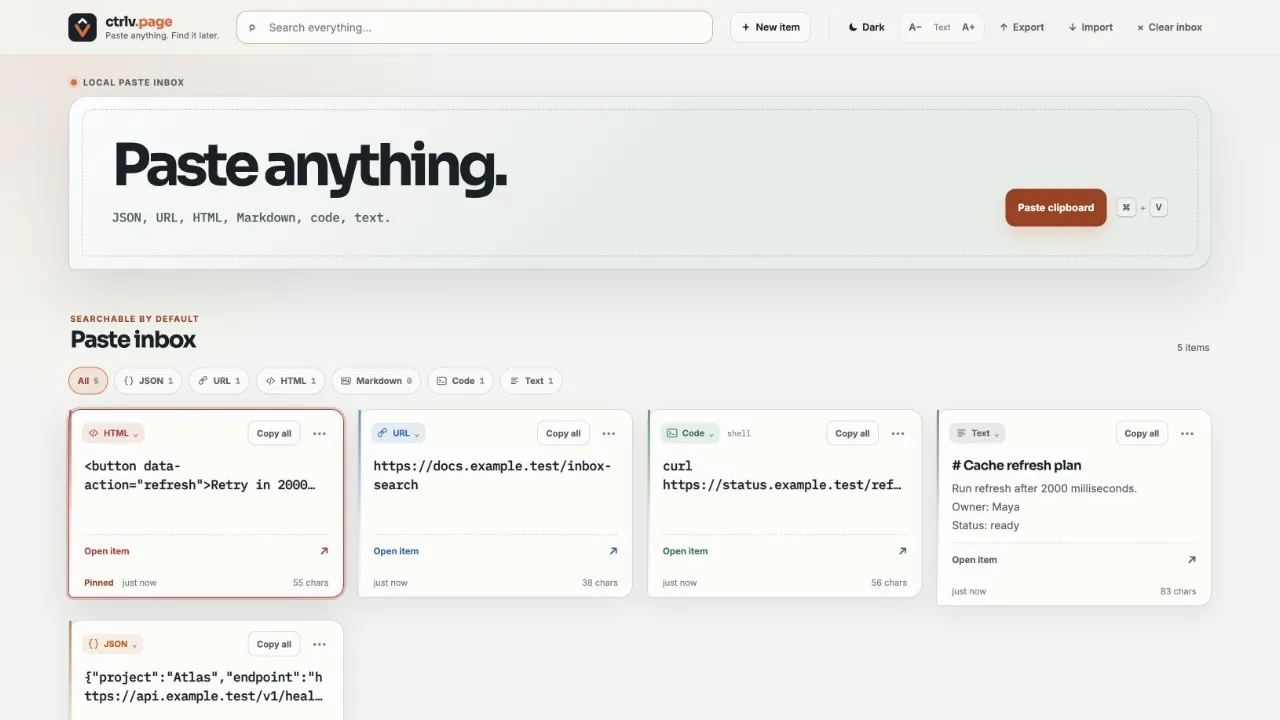
Open workspace settings
On a wide screen, the workspace controls are visible in the header. On a narrow screen, select the three dot button to open them.
Understand possible secret checks
ctrlv.page checks current item text and available clipboard HTML in this browser with deterministic rules. The rules look for JWT-shaped values, private-key blocks, common AWS, GitHub, Stripe and Slack token patterns, Bearer headers, sensitive .env assignments, credentialed database strings and long high-entropy values. Entropy checks run only on visible text. The check uses no AI and makes no network call. Its result is derived from the current content and is not stored as separate item metadata.
A Possible secret warning is not proof. A harmless match is a false positive. A missed secret is a false negative. Both are possible, so review the content yourself.
The warning does not mask or change the item. Copy all and Edit continue to use the original plain text. If stored clipboard HTML alone caused the warning, matched HTML may not appear in those controls; export review identifies that source.
Export an inbox backup
- Open workspace settings.
- Select Export.
- If a review opens, use each short plain-text preview and finding source to check the full item list. Exclude only the items you do not want in this file.
- Keep the downloaded
ctrlv-page-export.jsonfile in a safe place.
The export review opens only when one or more items may contain secrets. It shows every item, with every item included by default. A short plain-text preview helps identify each item, and the review identifies clipboard-HTML-only findings. If no item matches, the file downloads without this extra step.
Excluding an item affects only the downloaded file. It does not remove or change the item in your inbox. No item is excluded unless you choose to exclude it.
The file contains the included saved items, any stored source file names, your categories (all of them, used or not), each item's category and current workspace settings. Edit drafts and desktop window/list layouts stay on this device and are not included. Save unfinished edits before exporting. The JSON backup is not encrypted, even if GitHub sync uses encryption.
A saved Note is included with its title, rich formatting, colors, lists and checkbox states. Copy all produces plain text; Export keeps the complete Note for import later.
Import saved items
- Export the current inbox first if you may need it again.
- Open workspace settings and select Import.
- Choose a ctrlv.page JSON export file.
- Check the number of items shown in the confirmation.
- Select Replace items to continue.
Import replaces the items in the current inbox. It does not combine them with the items already there.
While GitHub sync is connected, Import works differently: it only adds items and merges exact copies, and the button reads Add items. How sync changes Import.
Exact duplicates inside the imported file are combined. Your current theme and text size stay unchanged.
An export file is format V6. Import accepts V1 through V6 files. Files from V1 through V5 have no categories, so their items come in uncategorized. An older app version cannot read a V6 file; update ctrlv.page before importing one there.
Import never changes or deletes a category already in your browser. A category with the same name is reused, ignoring case, accents and invisible characters, and the others are added. If the file would bring you above 50 categories, the whole import is cancelled and a message says so. Nothing is imported, and you can delete some categories and try again.
Import preserves saved Note formatting. Notes with different titles, formatting or checkbox states remain distinct even if some visible text matches. Update ctrlv.page before importing a backup that contains Notes into an older app version.
Remove an item and undo
Open the three dot item menu on a card, or on a row in Rows, and choose Remove. An Undo action remains available for five seconds.
Undo restores the complete saved item. After the notice closes, ctrlv.page cannot undo the removal.
Review old items
ctrlv.page may suggest a cleanup when items have never been copied and have had no paste or edit activity for at least 30 days.
Select Review to see every suggested item before removing anything. Select Dismiss to hide the suggestion for 30 days.
The cleanup suggestion never deletes items by itself.
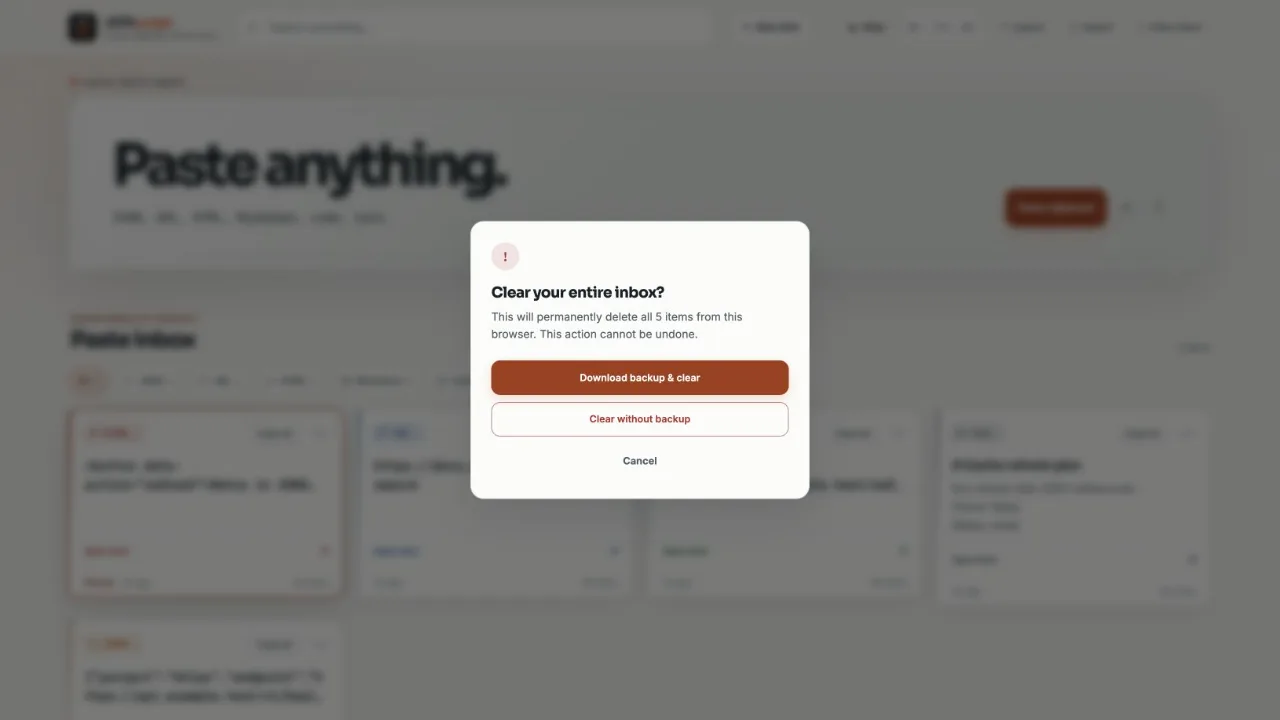
Clear the inbox
- Open workspace settings.
- Select Clear inbox.
- Choose Download backup & clear to save a file before deletion.
- Choose Clear without backup only if you do not need the current items.
- Choose Cancel to leave the inbox unchanged.
Clearing the inbox cannot be undone. You need an exported backup if you want to restore those items.
While GitHub sync is connected, clearing deletes the items on every synced device.
If Download backup & clear opens a possible-secret review, every item must remain included so the backup covers the inbox that will be cleared.
After the download starts, confirm that the downloaded file is present before ctrlv.page clears the inbox. Until you make that separate confirmation, the inbox stays intact. If the inbox changes in another tab, clearing stops.
Use ctrlv.page offline
The main app can work offline after its files have been prepared during an online visit. Wait for the message that ctrlv.page is ready to work offline.
Items you paste while offline are saved in this browser. If GitHub sync is connected, they sync when you are back online.
You can also create and edit Notes offline, including their titles, formatting and checkboxes. Saved changes are still there after you reload the prepared app. If GitHub sync is connected, they sync when you are back online.
Install the app
A supported browser may offer an Install option in its address bar or menu. The location and wording depend on the browser.
The installed app opens in its own window and uses the same local inbox for that browser profile.
Apply an update
The browser tab and installed app use the same update flow. You do not need to reinstall ctrlv.page for a normal app update.
When updates are checked
ctrlv.page checks when you open it online, return to its tab or window, or reconnect to the internet. It also checks every 30 minutes while visible and online. Checks close together are limited to once per minute, so a new release may not appear immediately.
Available updates are prepared in the background. A closed or sleeping app cannot check on that schedule; return to it online to check again. You can keep using the current version while offline.
Choose when to switch
When Update available appears, choose Update to reload this window with the new version. The notice does not expire after a minute. If you are not ready, continue working and use Update later.
Finish saving and close the current item view, editor or transfer dialog before updating. The update control may be hidden while a dialog is open and returns when you close it. If a capture or transfer is still running, wait for it to finish and choose Update again. If saving fails, resolve the save error before continuing.
Updating in another window does not force this window to reload. If Update ready appears here, finish your current action and choose Update in this window too. If an update reports an error, try Update again.
Your inbox and installation
Normal app updates keep your saved inbox in the same browser profile. Do not clear site data to update: that can remove your local items. Use Export when you need a separate backup.
Installation details such as Open With file types are updated separately by Chrome. If a new file type is missing from Finder, closing and reopening the installed app after updating can help apply those changes. Routine app updates reload the window themselves.
Common questions
- Does ctrlv.page sync my inbox?
- Only if you turn on GitHub sync. Otherwise, use Export and Import to move items yourself.
- Does Export send items to a server?
- No. Export creates a JSON file in your browser and downloads it to your device.
- What does Import replace?
- Without GitHub sync, Import replaces the saved items in the current inbox. With sync connected, it adds and merges items instead. Your current theme and text size stay unchanged.
- Can cleanup remove items without asking?
- No. It shows a review list and waits for you to confirm.
- Can I undo Clear inbox?
- No. You need an export created before clearing to restore those items.
- Will items appear in another browser?
- Only when both browsers are connected to the same GitHub sync repository. Otherwise, export in the first browser, then import that file in the other browser.