
Paste from another app
- Copy the text you want to keep.
- Open ctrlv.page.
- Press Ctrl+V on Windows or Linux, or Command+V on Mac.
- Check the type label and character count when the saved item opens.
If you are typing in Search or an editor, paste goes into that field. Click outside the field before using the page shortcut.

Choose or drop one text file
Select Choose file, or drag one file onto the Paste anything area. ctrlv.page accepts one readable text or code file up to 20 MiB. It reads UTF-8 and BOM-marked UTF-16 text in your browser.
The decoded text becomes the item without changing its characters or line endings. The file name is shown separately and can be searched. It is not added to Copy all. The original binary file is not stored or uploaded.
Office documents, OCR, archives, images and multiple-file capture are not supported in this version. A rejected, empty, unreadable or oversized file creates no item.
Add a PDF
Choose or drop one PDF up to 20 MiB and 2,000 pages. ctrlv.page reads its text in your browser and saves it as a Markdown item. Headings, paragraphs and lists are rebuilt from the PDF text, and each new page starts with a line and a Page label. Open the item and choose Read to see it laid out, or Edit to change the text. Tables are kept as plain lines of text.
A password-protected PDF, a damaged PDF and a scanned PDF with no selectable text are not saved; a message says which it was. If only some pages have no text, the rest is saved, those pages are marked in the item and a notice says how many are missing. The PDF reader is downloaded the first time you add a PDF, so that first PDF needs a connection. After that, PDFs can be added offline while the reader remains cached. PDFs are accepted through Choose file or drag and drop, not through Open With or the share menu.
A PDF is converted to text, not preserved as a page-perfect document. Complex layouts may lose their structure. Some font encodings are unsupported; the app reports when text was left out or nothing could be read.
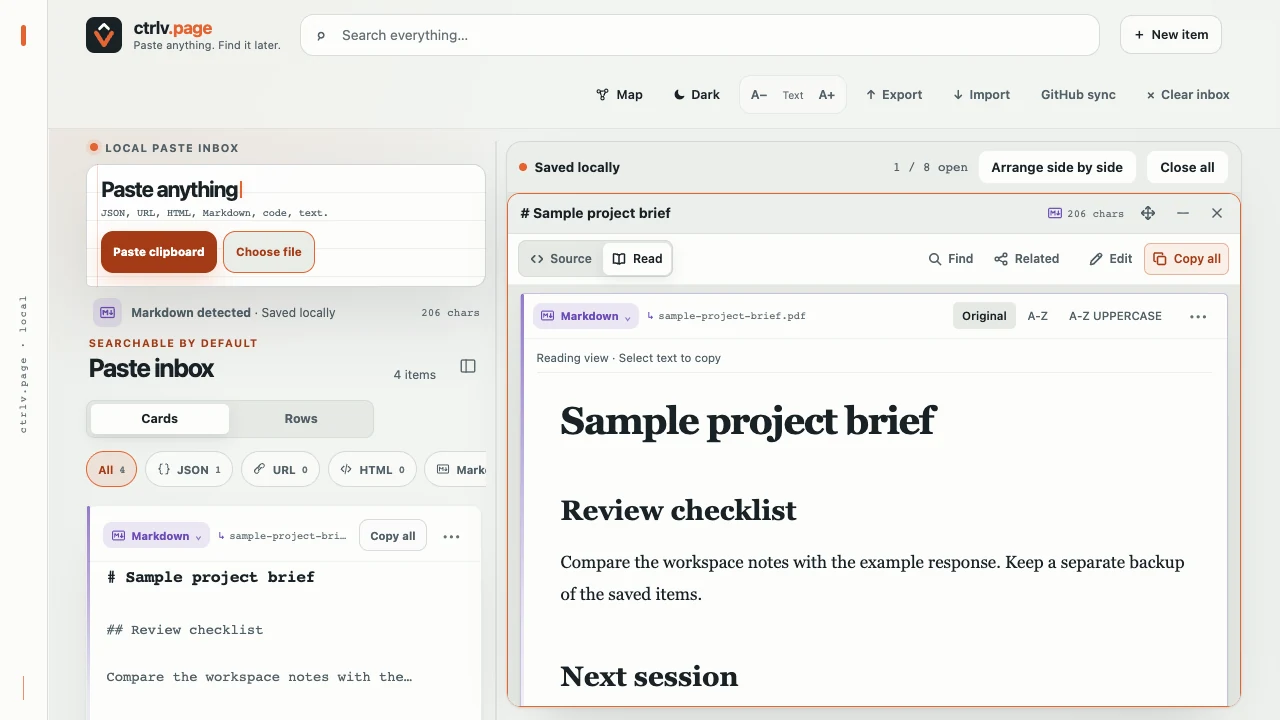
Open Markdown in the installed app
On Mac, install ctrlv.page with Chrome. Right-click a .md or .markdown file in Finder and choose Open With → ctrlv.page. Allow the file to open if Chrome asks. It opens directly in Read, and the original file stays unchanged.
For a pasted or dropped Markdown item, open its card and choose Read. Source brings back the original syntax and line-copy controls.
See the saved item
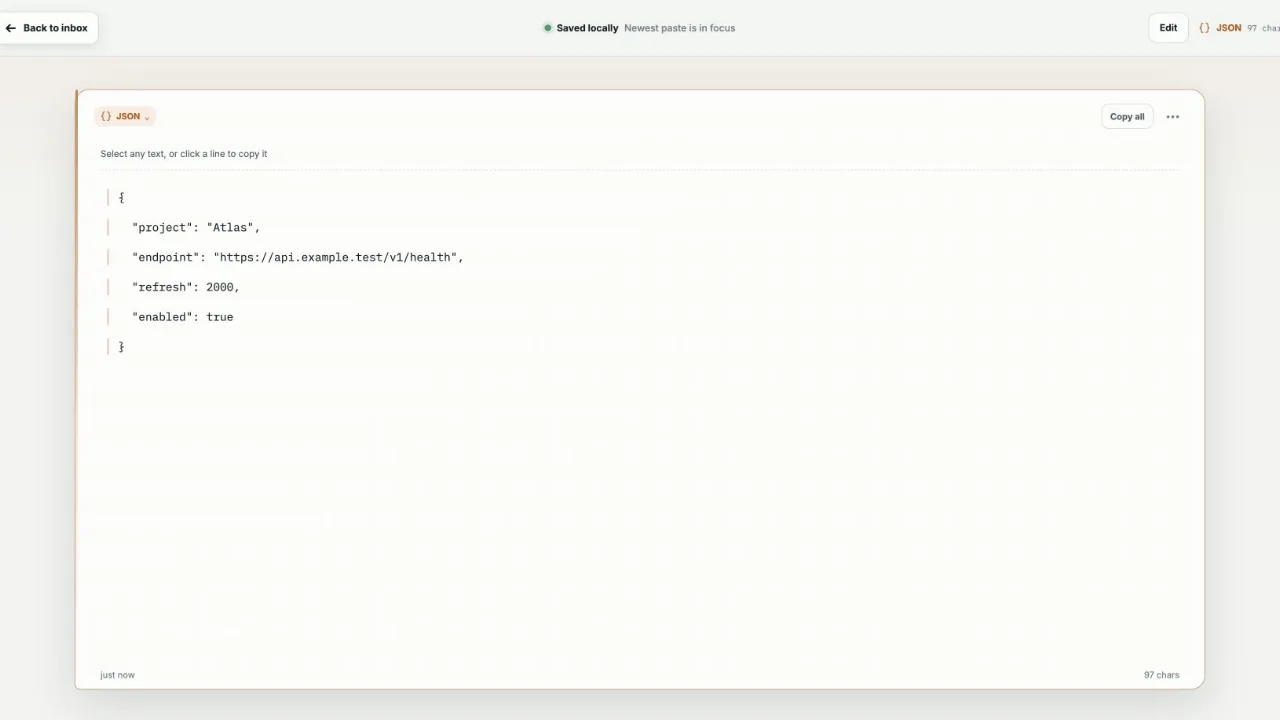
A new paste opens in a card window on desktop or full screen on a narrow display. You can copy it, edit it, check its type or return to the inbox. Learn how to arrange cards and use the new tools.
Select Related to see which saved items connect to it on the Map. Markdown, JSON, HTML, code and CSV items also offer Read. JSON becomes a collapsible tree, HTML is drawn as a page with scripts and remote files blocked, code gets colors and line numbers, and CSV becomes a table you can sort and filter. Source brings back the original text and line copy.
Follow the first paste guide
In a browser with an empty inbox, your first paste opens a short guide. It uses the item you just saved to show Search and Copy all.
You can leave the guide at any time. It does not return after you finish or dismiss it.
Write a Note
Select New item in the header on a desktop or phone. An empty inbox also offers Write an item. Add an optional title, then type or paste into the body. Use the toolbar for rich text, colors, lists and checkboxes.
New notes save locally after a short pause. Select Done when you finish. They appear as Note items and have their own type filter. A note with no title and no text is not saved. See the Note editor and saved card.
Choose Plain text before writing to use the original text-entry flow. That flow still detects types such as JSON or code.
Check the detected type
ctrlv.page can recognize JSON, URL, HTML, Markdown, CSV, code and plain text. Code items may also show a language such as CSS, TypeScript, JavaScript, Python, SQL or shell.
If the type is wrong, select the current type label and choose the correct one. A type you choose stays in place after later edits.
Note identifies a note you write in the rich editor. Existing pasted items are not changed into Notes automatically. Choosing Note from an item's type menu converts it deliberately.
Understand a Possible secret warning
After you paste, ctrlv.page checks the current text and available clipboard HTML in this browser with deterministic rules. The rules look for JWT-shaped values, private-key blocks, common provider tokens, Bearer headers, sensitive .env assignments, credentialed database strings and long high-entropy values. Entropy checks run only on visible text. The check uses no AI and makes no network call.
A Possible secret label means the current plain text or stored clipboard HTML matched one of those rules. It can flag harmless text or miss a real secret, so treat it as a prompt to review the item, not as a guarantee.
The result is derived from the current content and is not stored as item metadata. The text is not masked or changed. Copy all and Edit continue to use the original content. If clipboard HTML alone caused the warning, the matched HTML may not appear in Copy all or Edit; export review identifies that source.
Paste the same content again
When pasted content matches an existing item exactly, ctrlv.page updates that item instead of creating another card. The card records how many times the content was pasted.
Spaces and line breaks count as part of the content.
Edit saved content
Open the item and select Edit. Choose Save to keep your changes. Choose Cancel to discard the edit. Esc can leave a local draft for later; it does not mean Discard. How edit drafts work.
Empty content cannot replace a saved item. An automatically detected type is checked again after you save an edit.
Common questions
- What can I save?
- Any nonblank text, including notes, links, JSON, HTML, Markdown, commands and code. You can also choose or drop one supported text or code file.
- Can I save an image, Office document or PDF?
- A PDF with selectable text, yes: choose or drop it and its text is saved as a Markdown item. Images, Office documents and scanned PDFs are not read; this version does not use OCR.
- What should I do when Update appears?
- Finish saving and close the current editor or dialog, then choose Update to reload with the new version. You can continue working first; the notice does not expire. This works in both the browser and installed app. How updates work.
- Why did nothing happen?
- Check that the clipboard contains text and that your cursor is not in Search or an editor.