
What to know before you turn it on
- Your items go only to the private GitHub repository you choose. They travel directly from your browser to GitHub. ctrlv.page does not store a copy on its own servers.
- GitHub cannot be called for sign-in from a web page directly, so a small ctrlv.page sign-in service passes the sign-in code and tokens between your browser and GitHub. It does not store them and never sees your items.
- Without encryption, GitHub and anyone you add to the repository can read your items.
- Deleted items stay in the Git history of the repository. To remove them completely, delete the repository on GitHub.
- Do not rely on GitHub to block secrets. GitHub push protection for repositories is off by default and needs GitHub Secret Protection, and the push protection on your personal account covers only public repositories.
- If you lose the encryption password, the encrypted data cannot be recovered. Without the password, the copy on GitHub cannot be read. A device that has been unlocked keeps a key until you choose Forget password on this device or disconnect. Items in your browser are not encrypted.
- Disconnecting does not delete the repository. Your items in this browser and the repository on GitHub stay as they are.
- Keep the repository private. ctrlv.page checks this only when you connect; if the repository is made public later, sync does not stop.
If you never turn on GitHub sync, your items stay in this browser and ctrlv.page sends no request to GitHub.
Set up sync
You need a GitHub account. Sync uses a GitHub App called ctrlv-page-sync, which you install only on your sync repository.
- Open workspace settings and select GitHub sync.
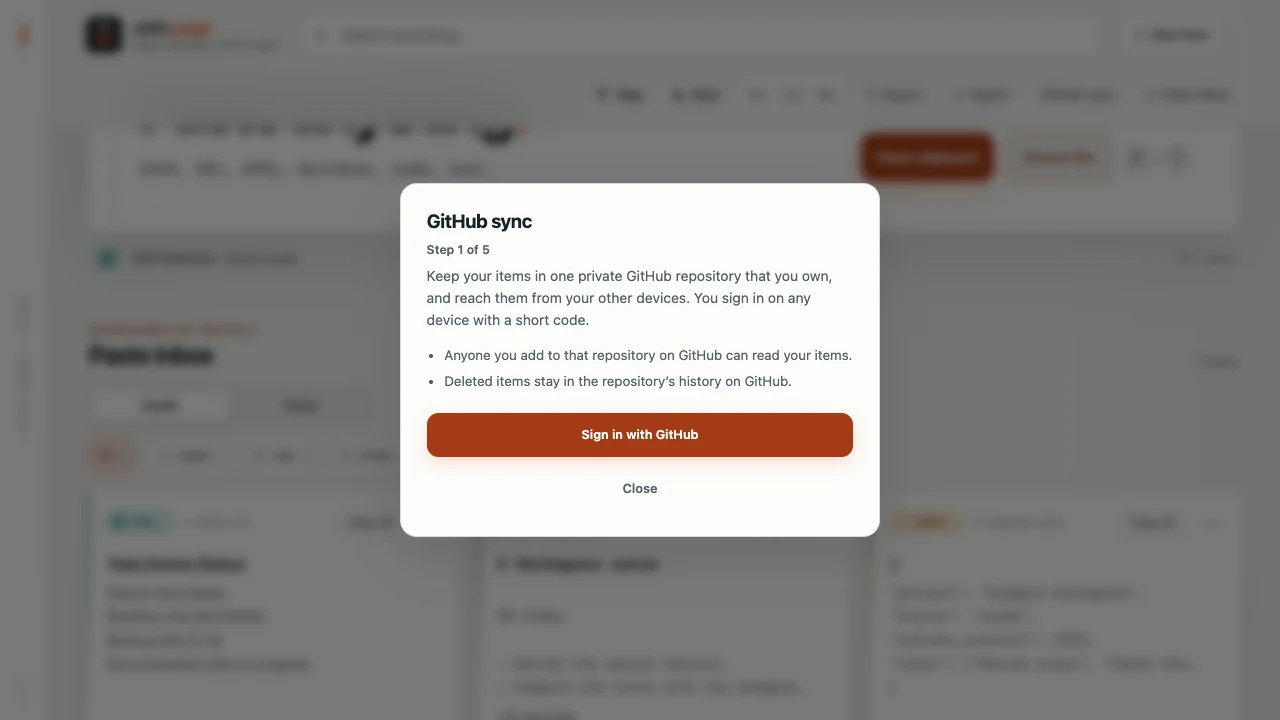
- Read what sync does, then select Sign in with GitHub.
- Open github.com/login/device, enter the short code that ctrlv.page shows and approve the request.
- Create a private repository. Create repository on GitHub fills in the name
ctrlv-syncfor you. ctrlv.page does not accept a public repository. - Install the app on GitHub. Choose Only select repositories and pick the sync repository. ctrlv.page warns you if the app can see every repository in your account.
- Select Check setup, choose the repository and select Connect repository.
- For a new repository, decide whether to encrypt your items, then start sync.
Items sync while ctrlv.page is open: when it starts, when you return to the tab or reconnect, and every 30 seconds while the tab is visible. A hidden tab does not check GitHub for new changes. Your changes are sent 10 seconds after you make them, or right away when you leave the tab. The sync status next to the theme button shows the last result. Select it to sync now.
Besides your items, the repository holds one small file per connected device with a device label such as Chrome on macOS, its platform and when it last synced. Each item also records random device IDs, its source formats and its detected type and language.
Add another device
- Open ctrlv.page on the other device and select GitHub sync in workspace settings.
- Sign in with the same GitHub account.
- Select Check setup and choose the same repository.
- If the repository is encrypted, enter its password. If it is not encrypted, ctrlv.page asks you to confirm before it joins.
Items already in that browser are added to the synced inbox. Each browser and browser profile connects separately. Unsaved edit drafts and window/list layouts stay on their own device; save an edit to sync its content.
Saved Notes sync with their titles, rich formatting, colors, lists and checkbox states, including when repository encryption is enabled. A checked task is a saved change and follows the same sync timing as other edits.
Update every open ctrlv.page tab and connected device before using Notes across devices. Once a Note reaches the repository, older app versions cannot continue writing to that repository. Such a device shows Update required and writes nothing to GitHub. When Update available appears there, choose Update; sync then continues by itself, without disconnecting. A device that joined an encrypted repository this way asks for its password first. If the notice does not appear, close every ctrlv.page tab and open it again. If a device shows Reconnect required instead, disconnect it and connect it to the same repository again; it asks for the password or your confirmation before anything is sent. Do not delete its local items or clear its browser data.
Categories and older app versions
Categories and each item's category sync between devices. Two devices that create a category with the same name end up with one. Deleting a category on one device deletes it on the others; its items stay, uncategorized.
The first category that reaches a repository moves it to a newer repository format (4). From then on, a device running an older app version shows Update required. It can read that repository but writes nothing to it. Update every open ctrlv.page tab and connected device before you use categories across devices; the steps under adding another device apply here too.
A deleted category's name is no longer written to the repository, but older versions of its file stay in the Git history until you delete the repository on GitHub.
Handle an Other version
If two devices change the same item before they sync, ctrlv.page keeps both. The most recent change becomes the item, and the other change is kept as an Other version. A card with a kept version shows an Other version badge.
- Open the item.
- Read the first lines of the other version.
- Choose Restore as item to add it to your inbox as a new item, or Dismiss if you do not need it.
After you dismiss a version, Undo stays available for a moment. The item itself does not change in either case.
Other versions of a Note also preserve its title, formatting and tasks. Restore as item keeps the complete Note, including differences that only affect styling or checkboxes.
Encrypt your items
With encryption, items are encrypted in your browser before they reach GitHub. The key is created from your password with Argon2id and items are encrypted with AES-GCM. GitHub and anyone you add to the repository see encrypted data instead of your items and device labels.
- Encryption can be chosen only when a repository is first set up for sync. It cannot be turned on or off later for that repository. To encrypt an existing unencrypted sync, connect a new, empty private repository. The old repository and its history stay on GitHub until you delete it.
- The password needs at least 8 characters. Every device asks for it once and then keeps a key in its browser until you choose Forget password on this device or disconnect.
- If you lose the encryption password, the encrypted data cannot be recovered.
- Even with encryption, some details stay visible on GitHub: the number of items and devices, the random item and device IDs used as file names, file sizes, which files change in each commit, commit times, and whether two large items have identical text.
- Encryption protects the copy on GitHub. Items stored in this browser are not encrypted by this feature.
A wrong password is rejected before any item is read, and nothing is changed. Forget password on this device pauses sync on that device until you enter the password again.
How sync changes Clear inbox and Import
While sync is connected, Clear inbox and removing items after a cleanup review delete those items on every synced device. Earlier versions stay in the Git history of the repository. To clear only one device, disconnect it first.
While sync is connected, Import only adds items from the file and merges exact copies. It removes nothing. To replace the whole inbox, disconnect first.
Disconnect a device
- Open workspace settings and select GitHub sync.
- Select Disconnect.
Disconnecting forgets the sign-in, the repository and any sync password on this device. Disconnecting does not delete the repository, and your items in this browser stay as they are. You can connect again later.
Delete the synced data on GitHub
Deleted items stay in the Git history of the repository. The only complete removal is to delete the repository on GitHub.
- Disconnect every device first, so none of them tries to sync with the deleted repository.
- On GitHub, open the repository, then Settings, and use Delete this repository.
- If you no longer want sync, uninstall the ctrlv-page-sync app in your GitHub settings under Applications.
Deleting the repository cannot be undone from ctrlv.page. Items in each browser stay there. Export a backup first if you need one.
Common questions
- Does ctrlv.page see my items when sync is on?
- No. Your browser sends them to your GitHub repository. The ctrlv.page sign-in service handles only sign-in codes and tokens.
- Is sync on by default?
- No. Nothing is sent to GitHub until you sign in and connect a repository.
- What happens if I delete or rename the repository?
- Sync stops and shows a notice. Nothing on the device is deleted. Open GitHub sync to reconnect or disconnect.
- Do I still need backups?
- Sync copies changes, including deletions, to every device. Export a backup for items you cannot afford to lose.