
Guide 01
Save your first item
Paste text, choose a text file or PDF, use the share menu, or write a new item from scratch.
Read getting startedctrlv.page help
ctrlv.page saves pasted text in this browser so you can find and copy it later. Start with the task you need.
Arrange and read your cards · Find text inside a card · Add a PDF
What is ctrlv.page?
Keep ctrlv.page open beside your IDE. Drop in the JSON response, command, URL, error message, code fragment or rough note you need while you work. You do not have to name it, file it or turn it into a permanent note.
Remember one word? Search it, copy the original text and get back to your code.
The inbox runs on the client side; only the optional GitHub sign-in uses a small ctrlv.page service. Your pasted content stays in the current browser profile unless you turn on optional GitHub sync, which sends it from your browser straight to your own private GitHub repository. ctrlv.page does not upload or log it, and it never sends your items to a ctrlv.page server. Your clipboard is not monitored. Possible secret patterns are checked locally after you paste.
Export one JSON file when you want a backup, then import it to move the inbox yourself.
Five short guides
Each guide follows one task from start to finish.
Guide 01
Paste text, choose a text file or PDF, use the share menu, or write a new item from scratch.
Read getting startedGuide 02
Search the inbox or inside a card, explore related items and copy the text you need.
Learn how to find itemsGuide 03
See where items are stored, how local possible-secret checks work and what to review before selected exports.
Manage your dataGuide 04
Optionally keep the same inbox on your devices through your own private GitHub repository, with or without encryption.
Set up GitHub syncGuide 05
Arrange windows side by side, hide the list, read Markdown and tables, and return to unfinished edits.
Learn the card workspaceThe basic loop
You do not need an account or a folder system.
Select New item to write a Note with an optional title, rich text, colors, lists and checkboxes. New notes save locally as you write. Open a saved Note to check a task, or choose Edit to change its text.
Notes have their own filter and use the same search, cards, Map and backup tools as other items. Export and GitHub sync preserve the formatting; Copy all gives readable plain text.
Read a saved Markdown item with clear headings, lists, tables and code blocks. Choose Read in an open Markdown card, or open a file with the installed app.
The original file on your computer stays unchanged. ctrlv.page saves a local copy of its text in your inbox. Opening identical content again reuses the saved item.
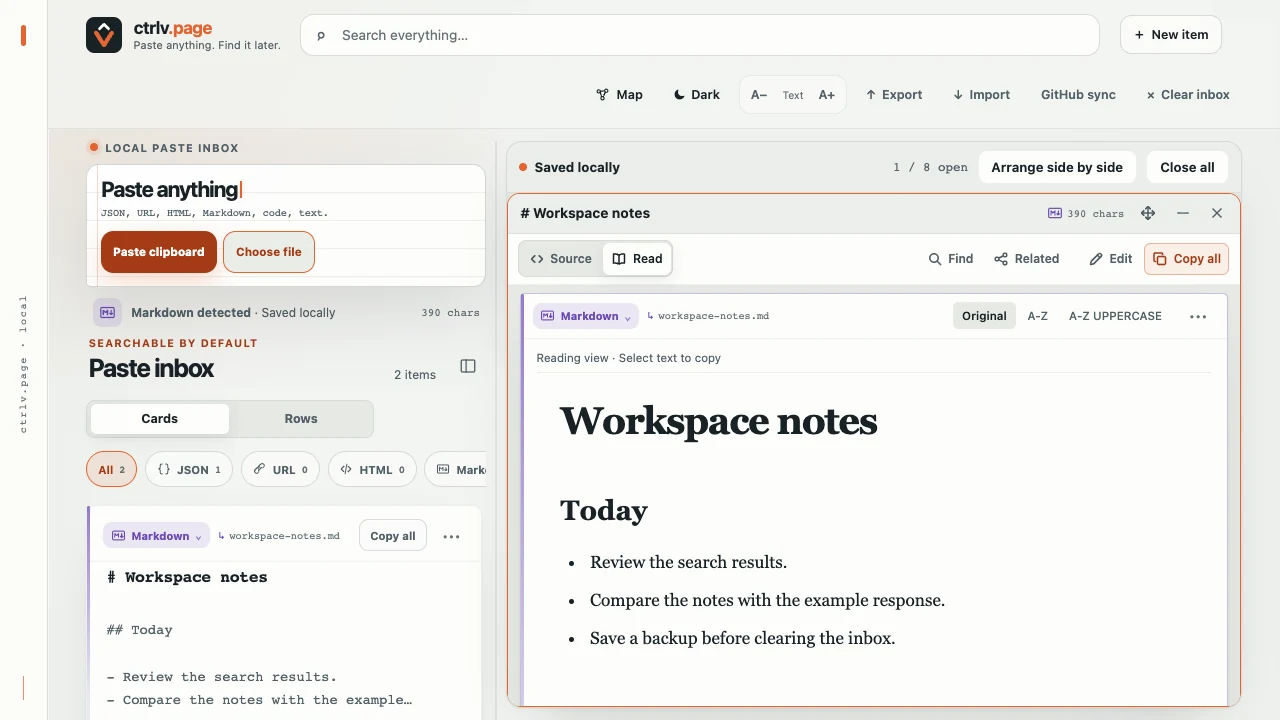
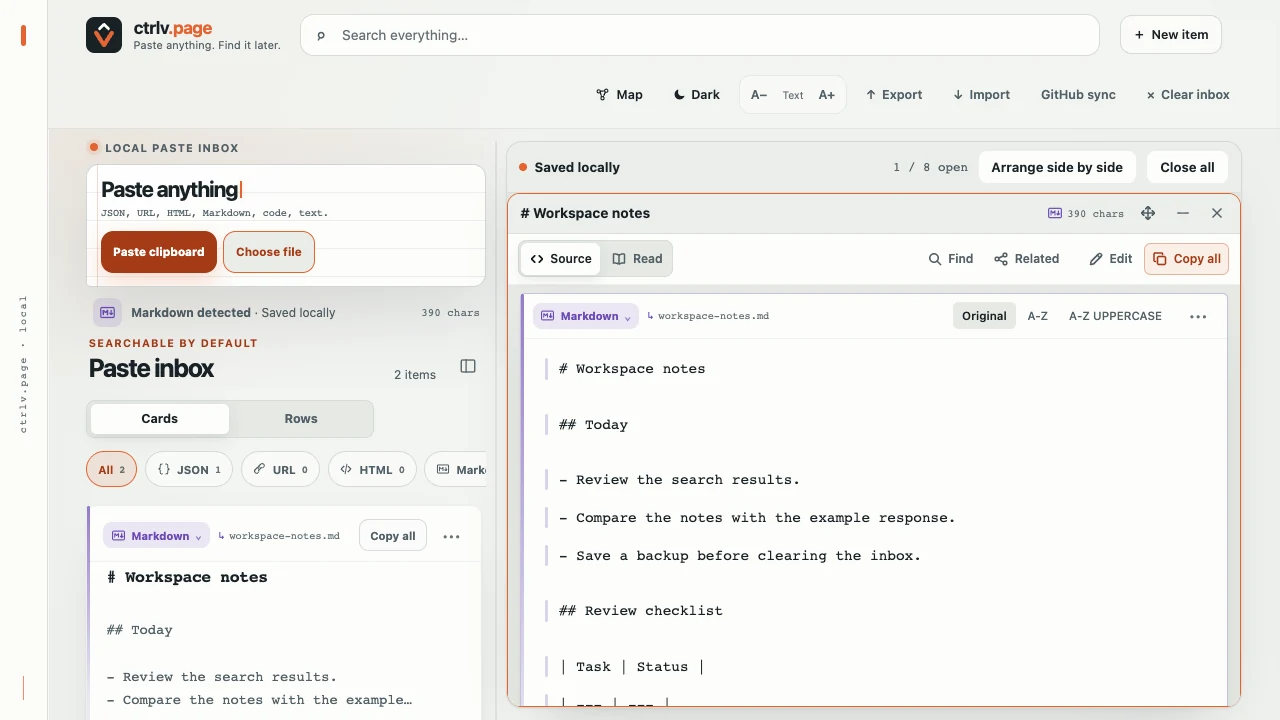
Choose Source to see the Markdown syntax and click individual lines to copy them. Copy all copies the exact saved text in either view. Edit changes the saved item, not the original file on your computer.
Open or return to the installed app online. If Update available appears, finish your current action and choose Update. If the Finder entry is still missing, close and reopen the app to help Chrome apply the separate file-association change. The entry may take time to appear. You can always use Choose file or drag the file into ctrlv.page instead.
Open one file at a time. Finish any active edit or import before opening another file. Files over 100,000 characters or 2,000 lines stay in Source for performance. Remote images appear as text descriptions without loading them.
This Open With flow has been verified in Chrome on Mac. Windows Chrome and Edge support the underlying feature, but ctrlv.page's Windows flow has not yet been tested.
Work from the keyboard
Use these shortcuts from the main inbox.
| Action | Shortcut | When it works |
|---|---|---|
| Paste an item | Ctrl+V or Command+V | Anywhere on the main page except inside a text field. |
| Focus Search | / | When you are not typing in a field. |
| Move through results | ↑ or ↓ | From Search or an active result. |
| Open a result | Enter | On the active result. |
| Copy a result | C | Copies the full active result. |
| Find in a card | Ctrl+F or Command+F | In an active card. See browser Find exceptions. |
| Hide or show the list | Ctrl+B or Command+B | With desktop cards open, when you are not typing in a field. |
| Go back | Esc | Closes card Find first. Outside editing or dialogs, closes the active card; unsaved changes may need a choice. With no card open, clears Search. |
Quick answers